http://www.oooninja.com/2008/02/create-relative-links-in-pdfs.html
Outro documento que achei sobre como criar links relativos em documentos do openoffice pode ser lido aqui.
Por padrão o openoffice salva links relativos, basta salvar por exemplo, os videos do impress, numa extrutura que você envie junto com os slides e tudo funciona beleza.
Mostrando postagens com marcador br-office. Mostrar todas as postagens
Mostrando postagens com marcador br-office. Mostrar todas as postagens


Manual do Softpedia: How to Install OpenOffice.org 3.1 on Ubuntu 9.04
Neste link:
http://news.softpedia.com/news/How-to-Install-OpenOffice-org-3-1-on-Ubuntu-9-04-111105.shtml
Você encontra um manual completo sobre como instalar o openoffice 3.1 no ubuntu 9.04
STEP 1 - Add the OpenOffice.org 3.1 repositories
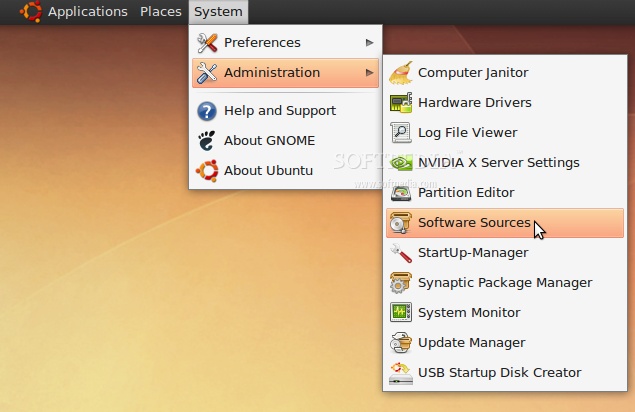
Go to System -> Administration -> Software Sources...
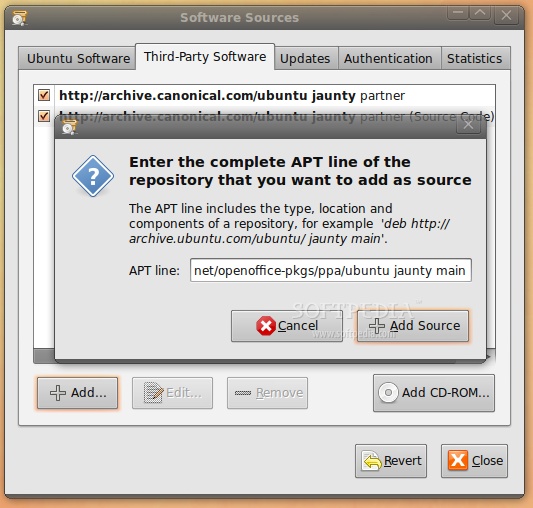
Enter your password. Go to the second tab, "Third-Party Software," click on the "Add" button, and paste the line below for your Ubuntu distribution...
For Ubuntu 8.04
deb http://ppa.launchpad.net/openoffice-pkgs/ppa/ubuntu hardy main
For Ubuntu 8.10
deb http://ppa.launchpad.net/openoffice-pkgs/ppa/ubuntu intrepid main
For Ubuntu 9.04
deb http://ppa.launchpad.net/openoffice-pkgs/ppa/ubuntu jaunty main
· Right click HERE and choose the "Save Link As..." options to save the key file on your desktop.
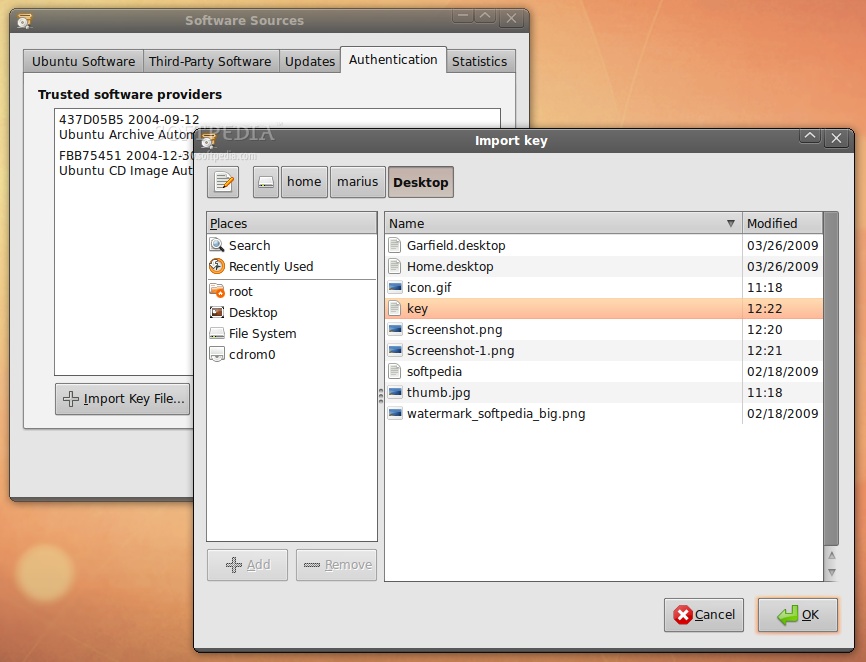
· Go to the fourth tab, "Authentication," click the "Import Key File" button, navigate to the location where you've just saved the key file (usually, it is File System/home/YOURUSERNAME/Desktop) and double click it. You will immediately see a new entry called "247D1CFF 2009-01-21 Launchpad PPA for OpenOffice.org Scribblers."
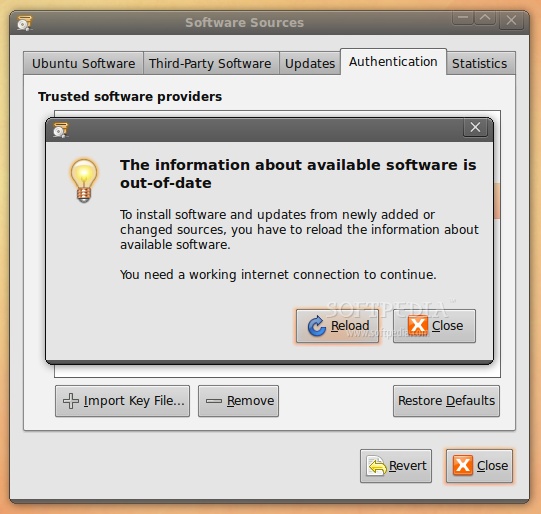
Now, click the “Close” button, then the “Reload” one and wait for the application to close!
STEP 2 - Remove the old OpenOffice 3.0
Go to System -> Administration -> Update Manager...
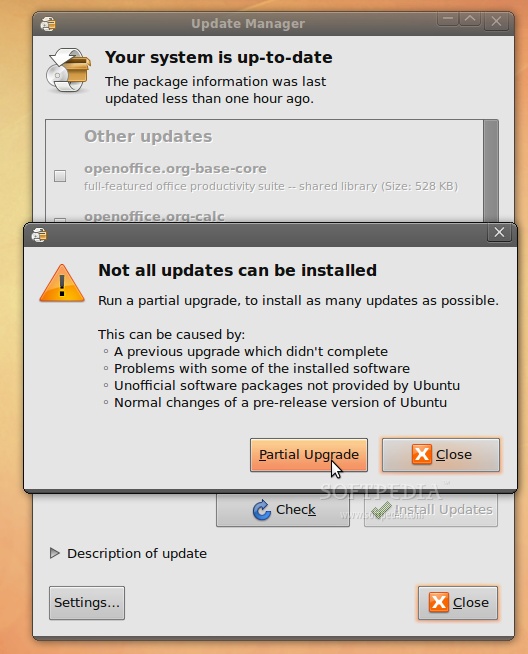
Let the Update Manager load the information about new software and click on the "Partial Upgrade" button when prompted...
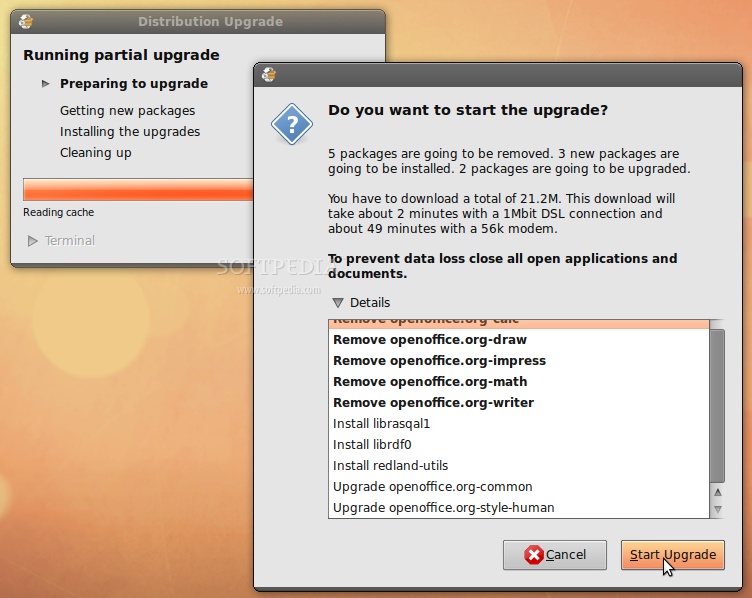
The partial upgrade will start and you will be asked to confirm the upgrade. Click on the "Start Upgrade" button...
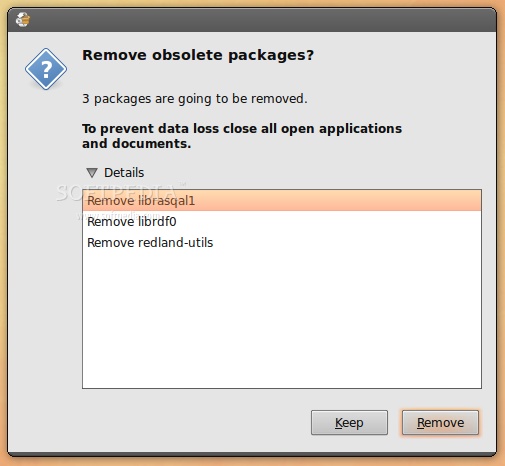
When asked to remove obsolete packages, click on the "Remove" button...
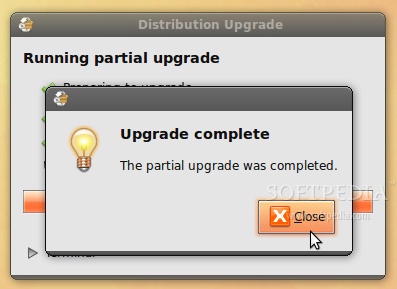
When the partial upgrade is done, click on the "Close" button to finish the removal process of the installed OpenOffice.org suite.
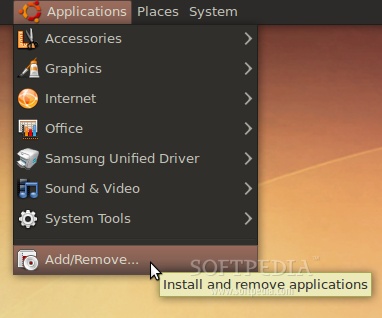
However, not all packages were removed, so you need to do it manually before installing the new OpenOffice.org 3.1. Open a terminal (Applications -> Accessories -> Terminal) and paste the following code:
sudo apt-get remove language-support-en language-support-translations-en openoffice.org-help-en-gb openoffice.org-l10n-en-gb openoffice.org-l10n-en-za thunderbird-locale-en-gb
Type Y when asked if you want to remove those packages. When it's done, close the terminal window.
STEP 3 - Install OpenOffice.org 3.1
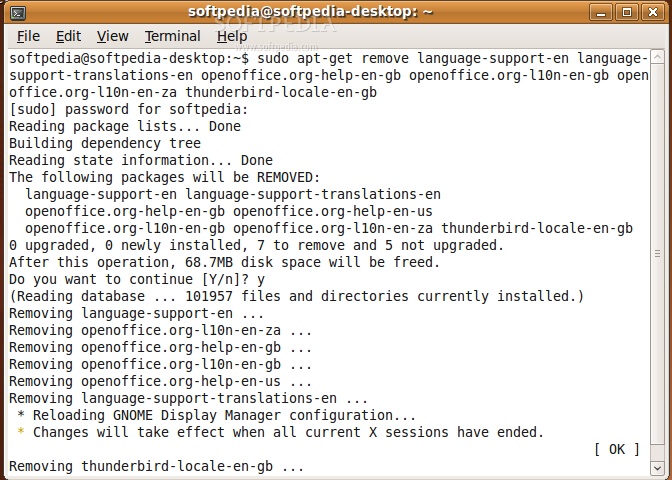
At this moment, you don't have any OpenOffice.org suite installed in your system. Therefore, go to Applications -> Add/Remove...
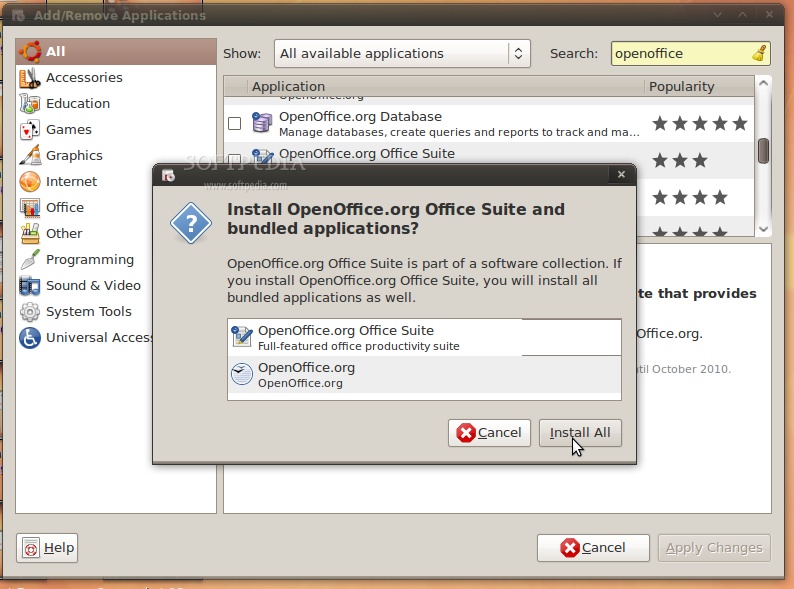
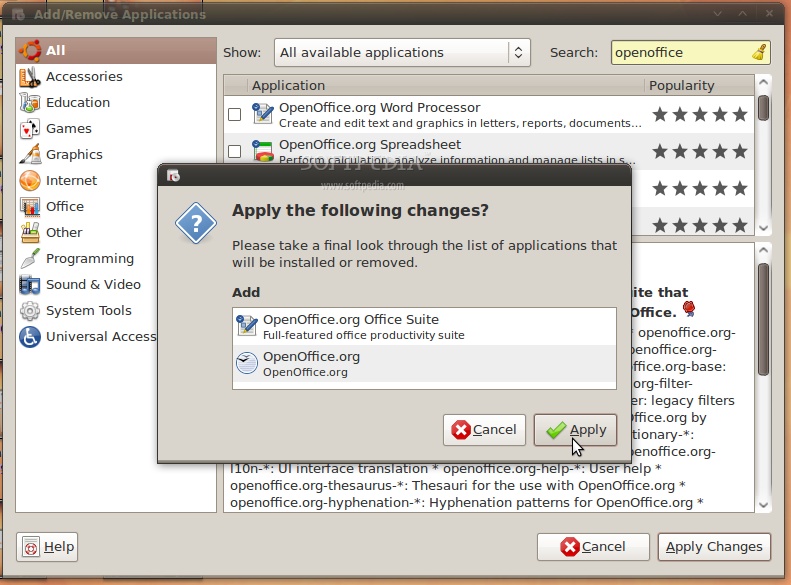
Select the "All availalbe applications" option from the "Show" drop-down menu and search for openoffice in the "Search" box. The OpenOffice.org Suite will be found... scroll down until you see it and click on the check box in front of it. Click the "Install All" button when asked if you want to install the OpenOffice.org Suite and bundled applications...
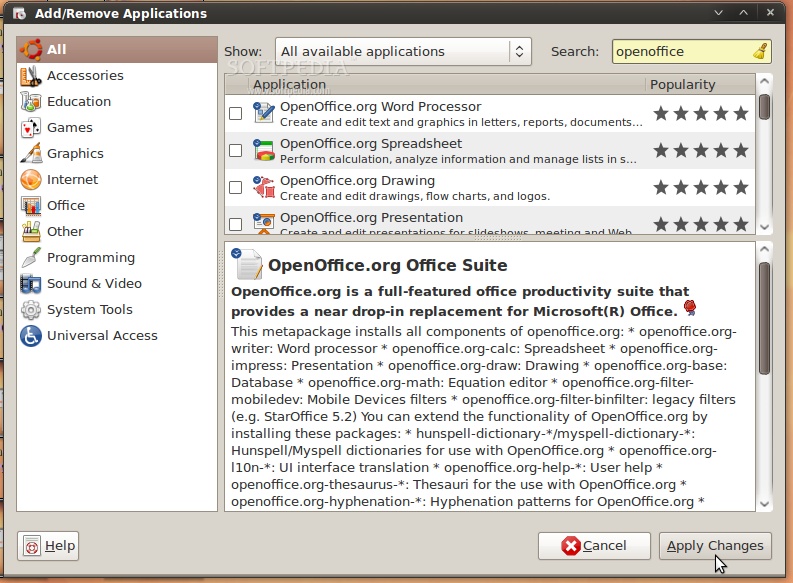
Now, click the "Apply Changes" button...
Then the "Apply" button...
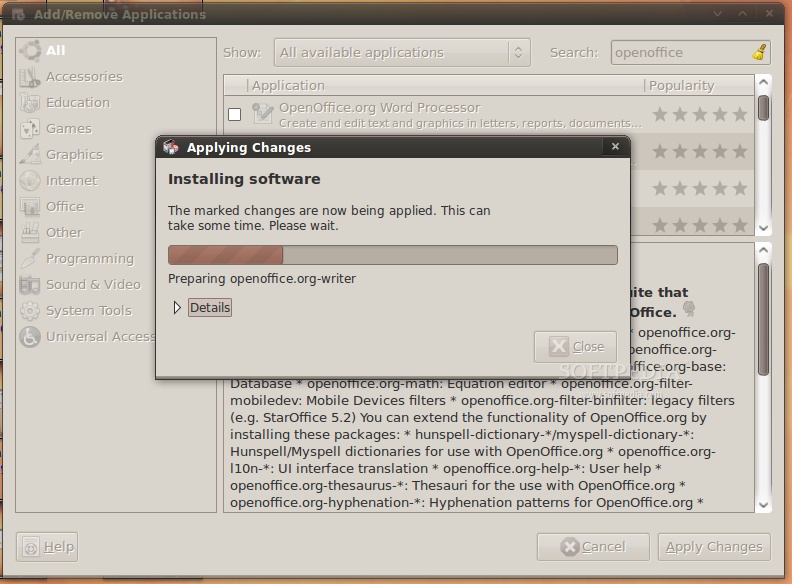
Wait for the installer to install the new OpenOffice.org packages....
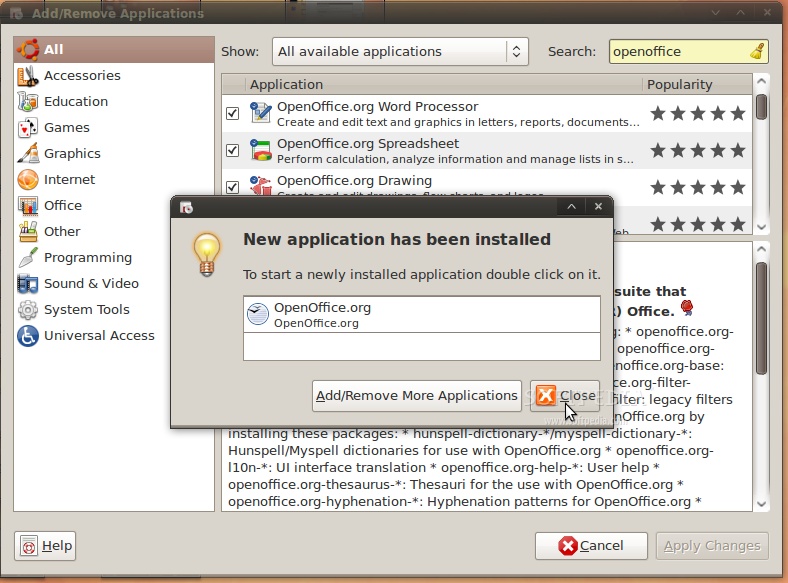
When the installation process is over, you will be notified. Click the "Close" button to close the Add/Remove software...
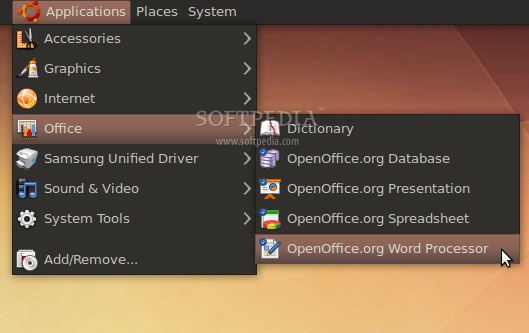
That's all, folks! Go to Applications -> Office and you can use your brand new OpenOffice.org 3.1 office suite.
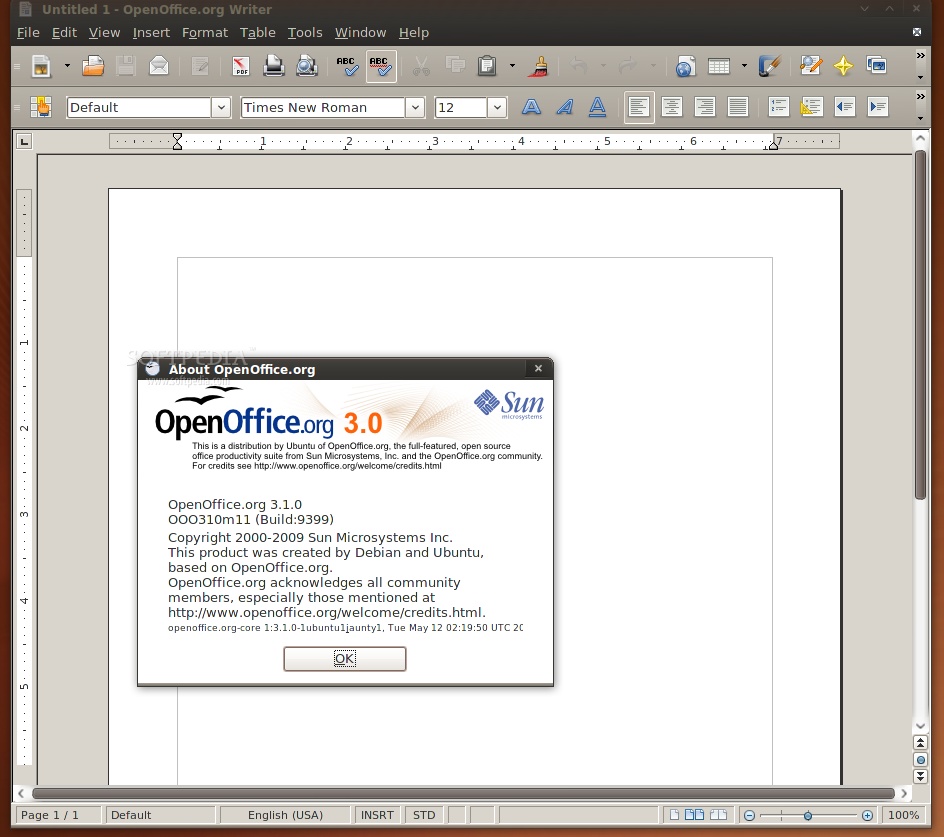
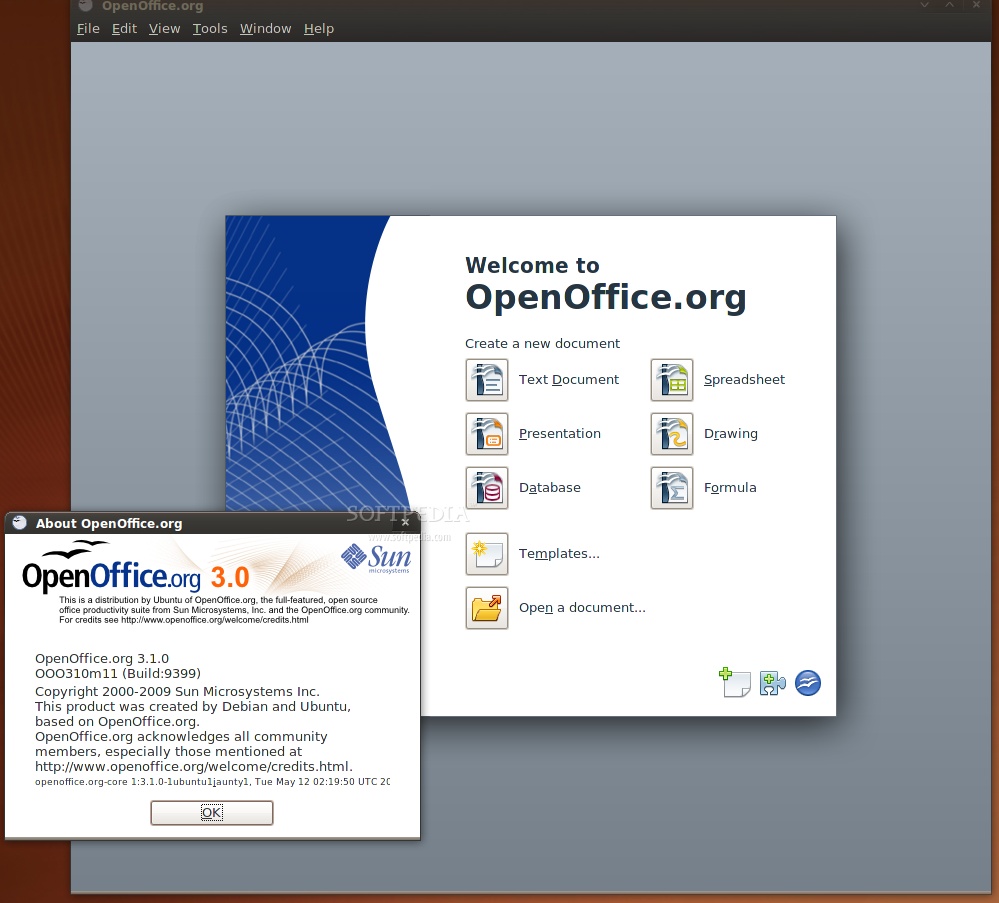
And the best part is that your open source office suite will be up-to-date from now on. Take a look below at some shots of OpenOffice.org 3.1 in Ubuntu 9.04 (Jaunty Jackalope).
Credits: Special thanks go to Chris Cheney and the "OpenOffice.org Scribblers" team for creating the PPA for Ubuntu.
http://news.softpedia.com/news/How-to-Install-OpenOffice-org-3-1-on-Ubuntu-9-04-111105.shtml
Você encontra um manual completo sobre como instalar o openoffice 3.1 no ubuntu 9.04
STEP 1 - Add the OpenOffice.org 3.1 repositories
Go to System -> Administration -> Software Sources...
 |
Enter your password. Go to the second tab, "Third-Party Software," click on the "Add" button, and paste the line below for your Ubuntu distribution...
For Ubuntu 8.04
deb http://ppa.launchpad.net/openoffice-pkgs/ppa/ubuntu hardy main
For Ubuntu 8.10
deb http://ppa.launchpad.net/openoffice-pkgs/ppa/ubuntu intrepid main
For Ubuntu 9.04
deb http://ppa.launchpad.net/openoffice-pkgs/ppa/ubuntu jaunty main
 |
· Right click HERE and choose the "Save Link As..." options to save the key file on your desktop.
· Go to the fourth tab, "Authentication," click the "Import Key File" button, navigate to the location where you've just saved the key file (usually, it is File System/home/YOURUSERNAME/Desktop) and double click it. You will immediately see a new entry called "247D1CFF 2009-01-21 Launchpad PPA for OpenOffice.org Scribblers."
 |
Now, click the “Close” button, then the “Reload” one and wait for the application to close!
 |
STEP 2 - Remove the old OpenOffice 3.0
Go to System -> Administration -> Update Manager...
 |
Let the Update Manager load the information about new software and click on the "Partial Upgrade" button when prompted...
 |
The partial upgrade will start and you will be asked to confirm the upgrade. Click on the "Start Upgrade" button...
 |
When asked to remove obsolete packages, click on the "Remove" button...
 |
When the partial upgrade is done, click on the "Close" button to finish the removal process of the installed OpenOffice.org suite.
 |
However, not all packages were removed, so you need to do it manually before installing the new OpenOffice.org 3.1. Open a terminal (Applications -> Accessories -> Terminal) and paste the following code:
sudo apt-get remove language-support-en language-support-translations-en openoffice.org-help-en-gb openoffice.org-l10n-en-gb openoffice.org-l10n-en-za thunderbird-locale-en-gb
Type Y when asked if you want to remove those packages. When it's done, close the terminal window.
 |
STEP 3 - Install OpenOffice.org 3.1
At this moment, you don't have any OpenOffice.org suite installed in your system. Therefore, go to Applications -> Add/Remove...
 |
Select the "All availalbe applications" option from the "Show" drop-down menu and search for openoffice in the "Search" box. The OpenOffice.org Suite will be found... scroll down until you see it and click on the check box in front of it. Click the "Install All" button when asked if you want to install the OpenOffice.org Suite and bundled applications...
 |
Now, click the "Apply Changes" button...
 |
Then the "Apply" button...
 |
Wait for the installer to install the new OpenOffice.org packages....
 |
When the installation process is over, you will be notified. Click the "Close" button to close the Add/Remove software...
 |
That's all, folks! Go to Applications -> Office and you can use your brand new OpenOffice.org 3.1 office suite.
 |
And the best part is that your open source office suite will be up-to-date from now on. Take a look below at some shots of OpenOffice.org 3.1 in Ubuntu 9.04 (Jaunty Jackalope).
 |
 |
Credits: Special thanks go to Chris Cheney and the "OpenOffice.org Scribblers" team for creating the PPA for Ubuntu.
Controle de versões no openoffice
Depois de iniciar o projeto do livro do vim aprendi a usar o Subversion. Assim o controle de versões entrou na minha via por tabela, tive que aprender pois o projeto já conta com mais de 20 pessoas e não dá pra gerenciar as mudanças manualmente. Agora descobri um artigo no dicas-l da unicamp sobre controle de versões no openoffice, altamente recomendado:
http://www.dicas-l.com.br/dicas-l/20050726.php
http://www.dicas-l.com.br/dicas-l/20050726.php
Openoffice abrindo arquivos via rede corretamente
duas dicas, caso tenha esquecido:
da Prefeitura de Fortaleza um amigo havia me relatado que havia parado sua migração para o Openoffice devido a esse problema.
- Instale estes pacotes:
aptitude -y install openoffice.org-gtk
aptitude -y install openoffice.org-gnome - Caracteres estranhos no nome tipo "?" ou coisa do gênero causa erros
da Prefeitura de Fortaleza um amigo havia me relatado que havia parado sua migração para o Openoffice devido a esse problema.
Extensões para o openoffice / broffice
À partir da versão 3 o broffice, ou openoffice como queira, suporta extensões, acesse este link:
http://extensions.services.openoffice.org/getmore?cid=920794
Referências:
http://extensions.services.openoffice.org/getmore?cid=920794
Referências:
Baixe o novo BrOffice (versão 3)
links:

Referências: guiadopc
Uma das principais novidades do OpenOffice.org 3.0 é, certamente, o suporte aos formatos do Microsoft Office 2007 (ou Microsoft Office 2008 for Mac). Isso significa que você não terá mais problemas para abrir aqueles arquivos *.docx, *.xlsx e *.pptx que seu amigo envia com o pensamento de que todos tem o Office 2007 instalado. Ou melhor, terá, já que o conversor não é 100%… Recursos como SmartArt, gráficos um pouquinho mais complexos, formatação de textos e algumas outras coisas não se dão muito bem com ele. Veja uma comparação entre um documento aberto no OpenOffice.org e no Office 2007:

Referências: guiadopc
Uma das principais novidades do OpenOffice.org 3.0 é, certamente, o suporte aos formatos do Microsoft Office 2007 (ou Microsoft Office 2008 for Mac). Isso significa que você não terá mais problemas para abrir aqueles arquivos *.docx, *.xlsx e *.pptx que seu amigo envia com o pensamento de que todos tem o Office 2007 instalado. Ou melhor, terá, já que o conversor não é 100%… Recursos como SmartArt, gráficos um pouquinho mais complexos, formatação de textos e algumas outras coisas não se dão muito bem com ele. Veja uma comparação entre um documento aberto no OpenOffice.org e no Office 2007:
Dica do dia - odf integrator
odf-converter-integrator
acesse aqui: http://katana.oooninja.com/w/odf-converter-integrator
odf-converter-integrator is an easy way to open Microsoft Office 2007 files (also called Office Open XML, .docx, .xlsx, and .pptx) with a high-quality conversion on any Linux or Windows system in any OpenOffice.org.
odf-converter-integrator uses the high-quality odf-converter code (which converts between Office Open XML and OpenDocument) as packaged by Novell and integrates it into the operating system. That means when you click on a .docx/.xlsx/.pptx file on a web page, in an email attachment, or your desktop, odf-converter-integrator springs into action, converts the .docx/.xlsx/.pptx to an .odt/.ods/.odp, and then automatically opens the new document in OpenOffice.org, StarOffice, Abiword, KWord, Gnumeric, Microsoft Office 2003, or whatever is your default ODF editor.
odf-converter-integrator is simply a little glue to overcomes the integration limitation of the Novell odf-converter, which cannot integrate into most editions of OpenOffice.org (such as the vanilla/Sun Microsystems edition, Fedora, OxygenOffice, and others).
Abrindo e salvando docx no openoffice
Pra quem usa Windows, baixar o arquivo oxt e instalar por
Ferramentas -> Gerenciador de extensões -> Adicionar
Como abrir arquivos .docx no openoffice
Fonte da Informação: ubuntu-geek
Baixe o conversor "odf-converter"
Para 32 bits
Baixe o conversor "odf-converter"
Para 32 bits
wget ftp://ftp-mirror.internap.com/pub/www.getdeb.net/od/odf-converter_1.0.0-2~getdeb1_i386.deb

  sudo dpkg -i
odf-converter_1.0.0-2~getdeb1_i386.deb
Para 64 bitswget http://cesium.di.uminho.pt/pub/getdeb/od/odf-converter_1.0.0-2~getdeb1_amd64.deb
sudo dpkg -i odf-converter_1.0.0-2~getdeb1_amd64.deb
Dicas legais para broffice.org - openoffice.org
http://www.alternativalivre.com/drapidas.php
Achei coisas muito interessantes no inocente link acima!
Achei coisas muito interessantes no inocente link acima!
Br-office.org - Openoffice.org Abrindo arquivos em rede
No meu trabalho tinhamos um problema, o Br-office
do ubuntu não abria arquivos em rede direto, tinhamos
que copiar para a máquina e só então editar o arquivo, mas
instalando as duas belezinhas abaixo resolvemos a parada.
do ubuntu não abria arquivos em rede direto, tinhamos
que copiar para a máquina e só então editar o arquivo, mas
instalando as duas belezinhas abaixo resolvemos a parada.
apt-get install -y openoffice.org-gtk apt-get -y install openoffice.org-gnome
Ótima dica para quem usa firefox e openoffice
Abrir documentos do OpenOffice.org no Firefox
fonte: http://open-mania.com/2007/09/23/abrir-documentos-do-openofficeorg-no-firefox/Se costuma utilizar OpenOffice.org e o Firefox ao mesmo tempo, pode visualizar um
Documento Aberto ou qualquer outros ficheiros suportados pelo OpenOffice.org utilizado
um plugin que já vem disponível no OpenOffice.org.
Conhece o projeto "Escritório Aberto"?
Caros amigos, o projeto "Escritório Aberto" é uma idéia genial, para entender sua finalidade dê uma clicadinha aqui. Ter modelos de documentos de vários tipos ao alcance do mouse é supimpa!
Assinar:
Postagens (Atom)
linux-cookbook

|
| Participe do grupo linux-cookbook |
| Visitar este grupo |